

Community SEO - how do I know it's working?

So, how do you know that all the SEO improvements you've implemented are working? Looking at Google Analytics and Google Search Console won't give you the full picture. They might show you clicks, SERP, queries and all the data.
But how do you actually read and analyse the data? What should you be looking for?
I'll answer all such questions in this discussion. Feel free to ask your questions below.
Step 1: Start with Google Search Console
Google Search Console shows you how Google views your community. If you haven't added and verified your community in Google Search Console; it's the time to do so. Once verified, you'll have to wait for a few days to let Google collect data. All Jatra-powered communities give you an automatically generated sitemap - so make sure that you've added your sitemap to the GSC's sitemap section.
Go to Settings -> Crawl Stats -> Open Report . You should see how the Googlebot crawls your community / forum:
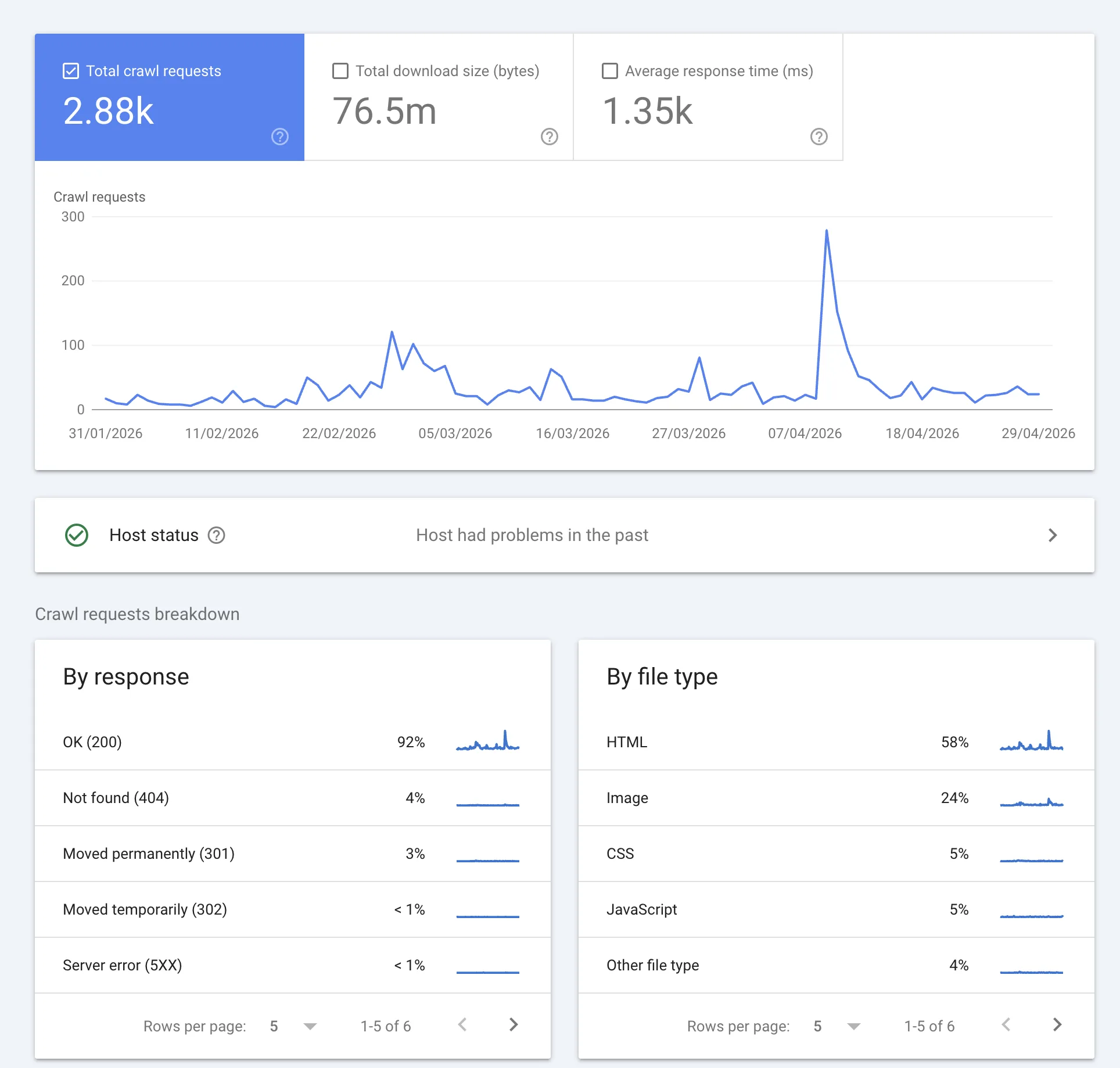
Ensure:
By Response : OK (200) is > 80%
HTML is the top file type.
Server Errors < 1%
This is an indication of a healthy site.
If the technical part of the SEO is good; all you need to worry about is content.
Step 2: Impressions > Clicks
Next, head over to the Performance section (from the left sidebar)
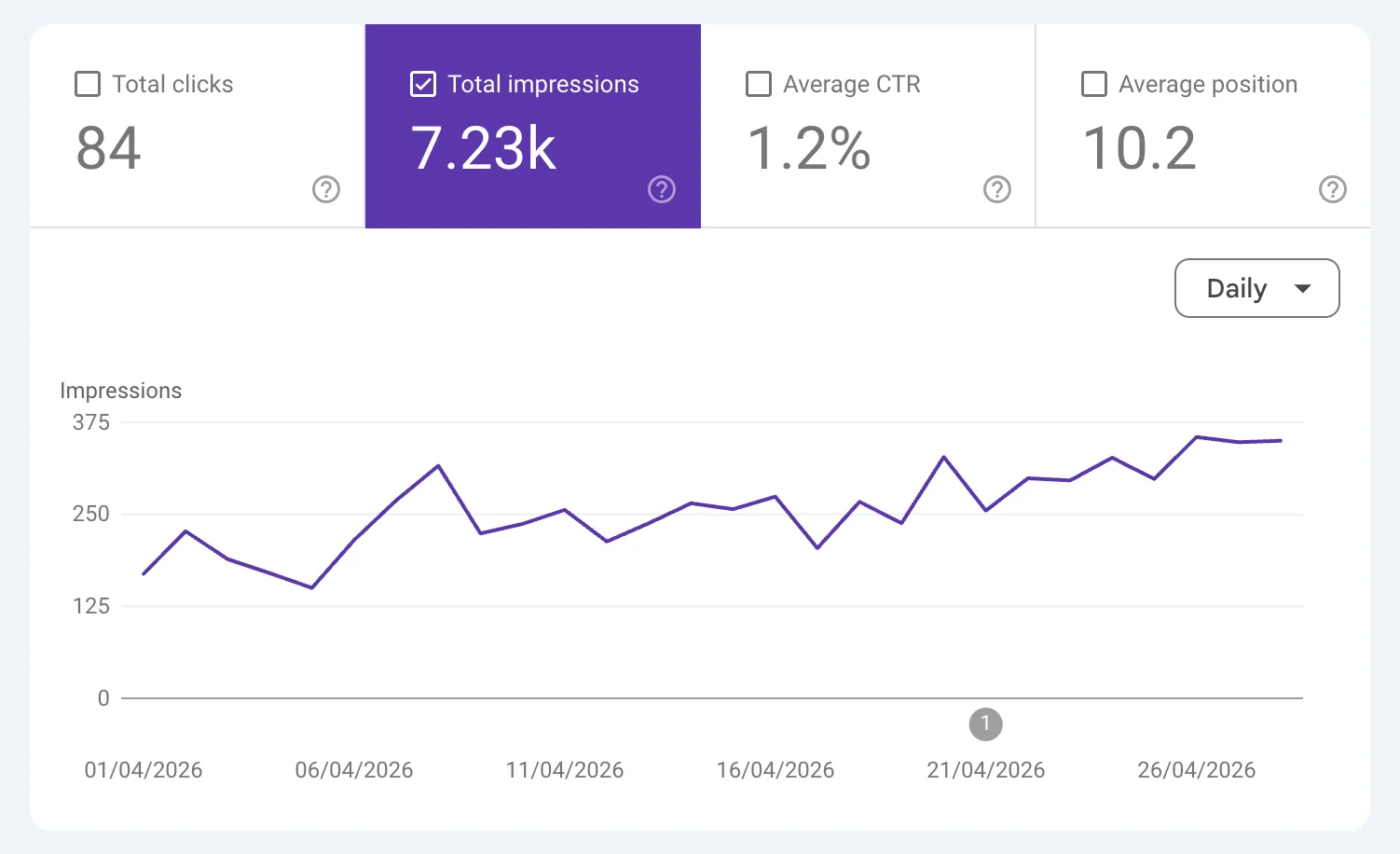
Click on 'Total Impressions' and unselect other tabs.
Important: You should see the graph of impressions rising. If your community is new; don't expect a rising graph. However, if your community is > 6 month old; you should see the impressions graph.
When Google decides to rank your website, it will alway start delivering more impressions. This is the phase Google is 'testing' your website. It's an incredibly good sign; and you can be sure that 'clicks' will follow.
Clicks will always follow a rising impressions chart.
If your impressions chart is flatline, you need to worry about the content.
Step 3: Queries and Pages
In the step 3, you need to see the impressions count that each of the page is receiving. Also make a note of the queries for which Google is sending impressions or clicks.
To see rapid improvements in your traffic, you will have to filter top 10 keywords that are driving impressions and clicks.
Then, make a list of all the pages that are driving traffic. Typically 20% of the pages will drive 80% of the clicks.
Optimize Existing Pages:
You'll find that each page is attracting traffic for multiple queries. Now inspect the actual content if it's serving the intent behind those queries. If not - update your content with useful content that serves the intent.
That's more than enough for you to know that your community SEO is working. If you have questions, ask them below.
Recommended Reading: SEO for Online Communities: Ultimate Guide to Organic Growth | Jatra Community